
How to convert PDF to Google Slides?
In the dynamic landscape of presentations, the ability to transform PDF files into
interactive and engaging Google Slides has become a game-changer. PDFs are widely used
for sharing documents, but when it comes to presentations, Google Slides offers a
vibrant and collaborative platform. Converting PDF to Google Slides empowers you to
leverage the power of visuals, animations, and interactivity to captivate your audience.
In this comprehensive guide, we will walk you through the process of converting PDF to
Google Slides and introduce you to HelpRange—an online platform offering PDF/document
protection and usage analytics. Discover how HelpRange enhances your document
transformation experience, ensuring the security, versatility, and impact of your Google
Slides presentations.
The Significance of Converting PDF to Google Slides
PDFs are renowned for preserving the layout and formatting of documents, making them
ideal for sharing static content. However, when it comes to presentations, the dynamic
nature of Google Slides offers numerous advantages:
1. Interactivity: Google Slides allows you to embed hyperlinks, videos, and interactive elements, enhancing audience engagement.
2. Collaboration: Multiple users can collaborate on the same Google Slides presentation in real time, streamlining the creation process.
3. Visual Appeal: Google Slides provides a plethora of design options, animations, and themes that bring your content to life.
4. Accessibility: Google Slides presentations can be accessed from any device with an internet connection, ensuring widespread availability.
5. Easy Sharing: Sharing Google Slides presentations is effortless, enabling seamless collaboration and feedback.
1. Interactivity: Google Slides allows you to embed hyperlinks, videos, and interactive elements, enhancing audience engagement.
2. Collaboration: Multiple users can collaborate on the same Google Slides presentation in real time, streamlining the creation process.
3. Visual Appeal: Google Slides provides a plethora of design options, animations, and themes that bring your content to life.
4. Accessibility: Google Slides presentations can be accessed from any device with an internet connection, ensuring widespread availability.
5. Easy Sharing: Sharing Google Slides presentations is effortless, enabling seamless collaboration and feedback.
Step-by-Step Guide: How to Convert PDF to Google Slides
Google Slides cannot open a PDF directly – in Google Drive, "Open with" offers Google
Docs for PDFs, not Google Slides. There are two reliable ways to get a PDF into Google
Slides:
Method 1: Convert the PDF to PowerPoint, then open it in Google Slides (editable text)
1. Convert the PDF to a PowerPoint file (.pptx) with a PDF converter, for example Adobe Acrobat ("Export PDF" > "Microsoft PowerPoint").
2. Go to drive.google.com, click "+ New" > "File upload" and upload the .pptx file.
3. Right-click the uploaded file and choose "Open with" > "Google Slides". Google Slides creates an editable presentation from it.
4. Check fonts and layout – complex PDFs may need small fixes after conversion.
Method 2: Insert PDF pages as images (exact look, not editable)
1. Save each PDF page as an image (PNG or JPG), for example with Adobe Acrobat ("Export PDF" > "Image") or Preview on a Mac ("File" > "Export").
2. In Google Slides, create a presentation and use "Insert" > "Image" > "Upload from computer" to add one page per slide.
3. Stretch each image to fill the slide and add text boxes, animations or speaker notes on top.
Once your presentation is ready, click "Slideshow" to present it, or "Share" to invite collaborators.
Method 1: Convert the PDF to PowerPoint, then open it in Google Slides (editable text)
1. Convert the PDF to a PowerPoint file (.pptx) with a PDF converter, for example Adobe Acrobat ("Export PDF" > "Microsoft PowerPoint").
2. Go to drive.google.com, click "+ New" > "File upload" and upload the .pptx file.
3. Right-click the uploaded file and choose "Open with" > "Google Slides". Google Slides creates an editable presentation from it.
4. Check fonts and layout – complex PDFs may need small fixes after conversion.
Method 2: Insert PDF pages as images (exact look, not editable)
1. Save each PDF page as an image (PNG or JPG), for example with Adobe Acrobat ("Export PDF" > "Image") or Preview on a Mac ("File" > "Export").
2. In Google Slides, create a presentation and use "Insert" > "Image" > "Upload from computer" to add one page per slide.
3. Stretch each image to fill the slide and add text boxes, animations or speaker notes on top.
Once your presentation is ready, click "Slideshow" to present it, or "Share" to invite collaborators.
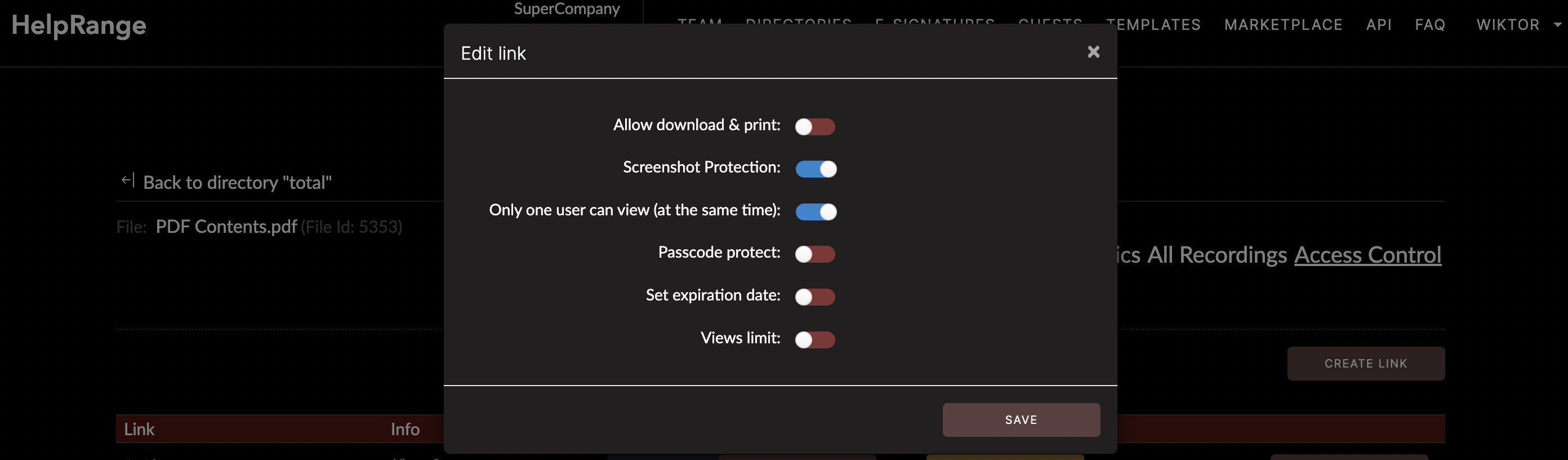
Document Protection with HelpRange:
Encryption: Apply robust encryption to your sensitive documents, ensuring
end-to-end security and confidentiality.
Access Control: Utilize password protection and customizable access permissions to ensure that only authorized individuals can view and interact with your documents.
Watermarking: Add watermarks to your documents to discourage unauthorized sharing and enhance your brand visibility.
Access Control: Utilize password protection and customizable access permissions to ensure that only authorized individuals can view and interact with your documents.
Watermarking: Add watermarks to your documents to discourage unauthorized sharing and enhance your brand visibility.
Usage Analytics with HelpRange:
Insightful Data: Gain valuable insights into how documents are being
accessed, viewed, and utilized by stakeholders.
User Behavior Analysis: Understand user behavior and engagement patterns to tailor strategy and optimize the user experience.
Real-time Notifications: Stay informed about document interactions in real time, empowering you with timely information to make informed decisions.
User Behavior Analysis: Understand user behavior and engagement patterns to tailor strategy and optimize the user experience.
Real-time Notifications: Stay informed about document interactions in real time, empowering you with timely information to make informed decisions.
Conclusion
Converting PDF to Google Slides is a transformative process that empowers you to breathe
new life into your presentations. By following the step-by-step guide provided in this
article, you can seamlessly convert your static PDF documents into dynamic and
interactive Google Slides presentations. Embrace the power of interactivity,
collaboration, and customization that Google Slides offers, and captivate your audience
with engaging visuals and content. Whether you're delivering a business pitch,
educational lecture, or creative showcase, the process of converting PDF to Google
Slides opens up a world of possibilities that can elevate your communication and
storytelling.